
Installation:
Please select your operating system:
(Make sure you are connected to a CIC network and that you are not using a VPN)MacOS:
- Download the PaperCut Print driver from our website: https://printing-global.cic.com/print-deploy/client-setup/macos.html . Do NOT change the name of the file! Note that you’ll only be able to download the driver when on CIC network.
- Double click on the downloaded .dmg file, when it opens double click on the PaperCut Print Deploy Client.pkg file
- Go through the installation, there will be no selectable options. You may be asked for your password to install the app.
- When the installation is complete, you should be able to see a new “printing-cic” printer in your System Settings -> Printers & Scanners
- From now on, when printing, choose the “printing-cic” printer. Adjust all the settings such as paper size, double-side print, pages etc. as you would normally do. Keep in mind that you’ll only be able to print from within the CIC network.
- During the first print you’ll be asked for credentials. Type in the credentials you got from us via e-mail. If you did not get them, get in touch with the Community Team.
For IT Departments: If you require to mass deploy the client, please reach out to your Community Team who will direct you to CIC IT Department for support. Jump down to the end of this file to learn how to actually get your printout from the printer.
Windows:
- Download the Papercut Print Driver from our website: https://printing-global.cic.com/print-deploy/client-setup/windows.html . Do NOT change the name of the file! Note that you’ll only be able to download the driver when on CIC network.
- Run the installation. Click through it.
- Once the installer finishes, you will be prompted to enter your credentials. During the first print you’ll be asked for credentials which you got from us via e-mail. If you did not get them, get in touch with the Community Team.
- From now on, when printing, choose the “printing-cic” printer. Adjust all the settings such as paper size, double-side print, pages etc. as you would normally do. Keep in mind that you’ll only be able to print from within the CIC network.
Mobile:
- On your phone open your native browser (e.g. for iPhone it must be Safari) and go to website https://printing-global-lb.cic.com:9164/setup Safari will download a configuration profile to your phone. Note that you’ll only be able to download the profile when on CIC network.
- Go to Settings. You’ll see a notification about a new profile downloaded. Tap it and confirm installation. You will be asked for your phone unlock code.
- When printing, choose Share -> Print.
- Choose the “printing-cic” printer. Adjust settings and hit Print:
- During the first print you’ll be asked for credentials. Type in the credentials you got from us via email. If you did not get them, get in touch with the Community Team.
Using the printer:
Print job release:
After sending the print job from your device, walk to the printer of your choice. The print job will be released on any printer you come to, you do not need to choose a specific printer earlier – only printing-cic. When you get to the printer:- Tap your card on the reader, which CIC recommends as the most convenient method. Alternatively, you can also log in using the credentials you got from us via email.
- Tap on Print release:
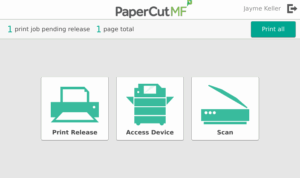
- You will be able to choose the print jobs you want to print, adjust their details etc.
- IMPORTANT: CIC by default prints in black & white and double-sided. Unselect these settings if you want to print in colour and/or single-sided.
- If you are happy with your selection just tap Print.
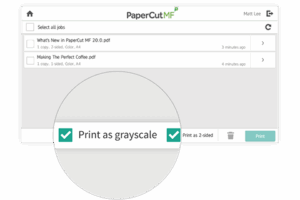
- When you’re done, click the logout Icon in the top-right corner:
 You will be logged out after 20 seconds of inactivity, but please keep in mind that during those 20 seconds other people can still get to your documents and print them if you have any left in the job queue.
Scan documents:
- If you want to scan documents, get back to the main screen and choose Scan. This will allow you to easily scan a document to your email. If you want more scanning options, choose Access Device and use printer’s built-in scanning feature.
Copy documents:
- If you want to copy documents, get back to the main screen, choose Access Device and use printer’s built-in copy feature.