
PaperCut
Network Access:
In order to protect CIC assets, PaperCut Server and CIC Printers are only accessible from the CIC network ranges. Therefore in order to access this service, you must be connected to one of the CIC Wi-Fi networks or connected via cable to one of the configured ports in CIC premises. If you are using a VPN connection you will not be able to access this service either, unless your administrator has set a “Split-Tunnel” implementation.
Furthermore, if you operate any client based firewall (or utilise a Special Tech Setup offering) you need to ensure the following ports are open to printing-global.cic.com (34.118.21.118) and to printing-global-lb.cic.com (35.190.47.24)
9191for HTTP connections9192for secure HTTP/SSL connection9193for device RPC (only used for embedded copier/MFP solutions)- TCP 9100 / LPD (515) – for print job submission
443for HTTPS connections to the Global Entitlements Service athttps://mf.cloud.papercut.com/*(used in PaperCut NG and PaperCut MF version 24.0 and later)9164for Print Deploy client to configure and update your print queues on your computer
Note: If you are located in One Broadway or 245 Main Street campuses, please make sure that the outbound traffic is allowed to printing-cambridge.cic.com (204.9.220.200) instead.
PaperCut Client Managed Deployment:
For automated deployment of the PaperCut client please follow one of the applicable guides located below:
https://www.papercut.com/help/manuals/print-deploy/roll-out-the-client
If you use any other solution or method for deployment, please contact the respective provider for additional support if in doubt.
Your local Community Team will help you retrieve the latest PCClient executable package from CIC Global IT Department, which you will need for such deployment.
PaperCut client will require its configuration to be set with “printing-global.cic.com” as the FQDN for target server.
Troubleshooting common issues
I’m sending print jobs to “printing-cic” printer, but they are not available to be released
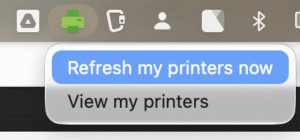
It seems like your computer might not have got the correct print queue configuration. Best course of action is to log off from the PaperCut Print Deploy application. Simply right click on the green printer icon in your taskbar, select “View my printers” and then click on “Change user” at the bottom of the screen. This will log you off and prompt for your PaperCut credentials. These had been issued to you during your printing system registration – look for an e-mail in your inbox with a subject of “Notification – CIC Printing” sent from “printing-global@cic.com” and stating with text “Thank you for registering for Printing@CIC! Your details are:”. If you can’t find it, reach out to your local community team who will be able to reset that for you.
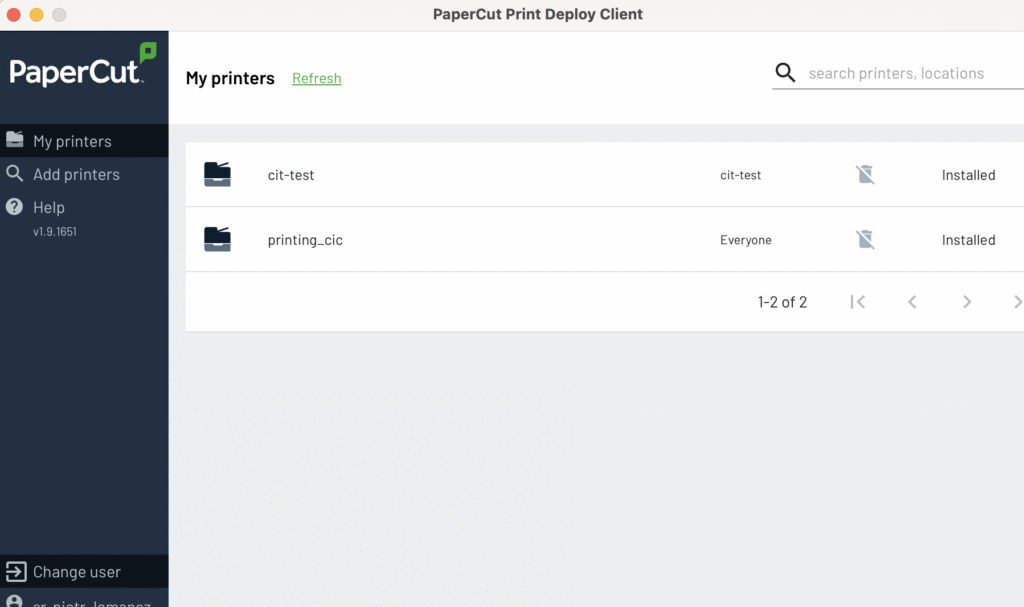
Alternatively, remove “printing-cic” printer from your computer (from the Control Panel / Settings on Windows or System Settings on Mac), right click on the Print Deploy Client and select “Refresh my printers” – it will reinstall the print queue with the latest, correct settings.
printing-cic is not appearing on my computer
Ensure that the Print Deploy client is installed on your computer – refer to the instructions located at the main page (https://printing.cic.com) and respective campus you are visiting.
Make sure that you are logged in to the PaperCut Print Deploy client with your Printing credentials – these had been issued to you during your printing system registration – look for an e-mail in your inbox with a subject of “Notification – CIC Printing” sent from “printing-global@cic.com” and stating with text “Thank you for registering for Printing@CIC! Your details are:”. If you can’t find it, reach out to your local community team who will be able to reset that for you.
When signing in you will see the following window:
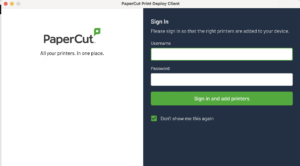
TIP: on MacOS cmd + C and cmd + V for pasting password will not work. However, if you right click on the Password field and select “Paste” from the context menu, it will work just fine.
Once you are successfully logged in, printing-cic will be installed on your computer.
My “printing-cic” printer just disappeared, what should I do?
In this case you might either have lost the correct authorization to the server or the print queue requires a reinstall. If you right click on your “Print Deploy Client” and select “View my printers” you might see there a request to either sign-in or install the required printer again.
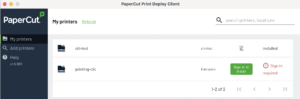
Simply type in your printing credentials again to get you going again.